System Requirements & Prerequisites
Ensure your computer is configured with these settings before extracting files to avoid startup crashes.
Windows OS Version
Windows 10 (Pro version recommended) is required to run the bot and manager software cleanly.
Disable Windows Update & Firewall
Ensure that both Windows Update and Windows Firewall are disabled to prevent software blocks or automatic updates from resetting configurations.
System Language (Recommended)
Setting your PC display language to English is highly recommended for optimal OCR template matching. (Other display languages still work, but English is preferred).
VGA Driver & Runtime Files
Update to the latest VGA drivers via Nvidia GeForce Experience. If your RemotePlay client does not open or shows errors, install the Visual C++ Redistributable packages below, then restart your PC.
Step 1: Download & Install Bot Files
Download and install the bot files using the official one-click installer.
Download FbhBotInstaller
Download the official bot installer from the mirror below. The installer contains all core files, configuration, and tools.
Run Installer (Default Path)
Launch FbhBotInstaller.exe. The installer is preconfigured to install directly to the required default directory: C:\Bot Manager RP v2\.
Run AutoUpdate.exe
After installation, navigate to C:\Bot Manager RP v2\ and run AutoUpdate.exe to automatically update the bot to the latest release files.
Step 2: Get HWID & Register License Key
Your bot requires a license file locked to your PC Hardware ID (HWID) to operate.
Copy HWID from Installer
Your machine's unique Hardware ID (HWID) is displayed directly on the screen of FbhBotInstaller.exe. Simply copy this HWID string.
Send HWID to Developer
Send your copied HWID to developer @NewBieT on Telegram to register your license key.
Place FBH_KeyV2.dat License File
Once you receive your license file, save or copy it directly as: C:\Bot Manager RP v2\FBH_KeyV2.dat.
Step 3: Account Database & Import Format
Configure your account credentials using tab-delimited text import or the in-app account manager.
Account Data Column Specifications
Accounts can be imported from a tab-delimited .txt file using the Import - ReplaceALL or Import - AddMore buttons. Separate each column using a single TAB (\t) character. Columns 2 through 16 are optional depending on your setup.
| Col | Field | Req | Description |
|---|---|---|---|
| 0 | PSNo |
Yes | Console machine index (e.g. 1, 2, 12) |
| 1 | AccNo |
Yes | Slot index. Normal: 1-20. Digital login: 97. Plus: 98. Digital: 99. (See AccNo rules below) |
| 2 | PSNEmail |
Opt | PS Network / Xbox account email |
| 3 | PSNPass |
Opt | PS Network / Xbox account password |
| 4 | PSNGAuth |
Opt | PSN Google Authenticator secret (for automated 2FA) |
| 5 | EAEmail |
Opt | EA account email |
| 6 | EAPass |
Opt | EA account password |
| 7 | EAGAuth |
Opt | EA Google Authenticator secret |
| 8 | PsnID |
Opt | PSN / Xbox Gamertag username (e.g. PlayerOne) |
| 9 | RefreshToken |
Opt | PSN OAuth token / Xbox refresh token |
| 10 | MacID |
Opt | Console MAC address (hex, no colons, e.g. bc60a7f25d55) |
| 11 | RegistKey |
Opt | Remote Play registration key (ASCII string, e.g. 80fd6184abcd1234) |
| 12 | RpKey |
Opt | Remote Play key (Base64, 16 bytes, e.g. abc123RPkey==) |
| 13 | IsPS5 |
Opt | Console type: 1 = PS5, 0 or empty = PS4 |
| 14 | PS IP |
Opt | Console LAN IP address (for direct LAN connection, optional) |
| 15 | PS5 Game version |
Opt | Game executable: 1 = PS5 version game, 0 or empty = PS4 version |
| 16 | IsXbox |
Opt | Console type: 1 = Xbox, 0 or empty = PlayStation |
AccNo Slot Index Rules
The account slot number dictates the role of the profile on the console:
- 1: Primary main account. (Must be paired and have
LoginedPSchecked. Automatically logged in first). - 2 – 20: Sub accounts on the same console.
- 97: Digital login account (guest profile login).
- 98: PlayStation Plus sharing account. Uses Plus mode.
- 99: Digital sharing account. Used for digital primary unlock.
- ⚠️ Slot values 21 – 89 are strictly not allowed and will throw errors on database load.
Sbnumber Naming Format
The system automatically calculates the Sbnumber from PSNo and AccNo using the format: sb{PSNo:D2}{AccNo:D2} (padding to 2 digits):
| PSNo | AccNo | Sbnumber | Meaning |
|---|---|---|---|
1 |
1 |
sb0101 |
Main profile of console 1 |
1 |
2 |
sb0102 |
Sub-account 2 of console 1 |
1 |
97 |
sb0197 |
Digital login account of console 1 |
1 |
98 |
sb0198 |
Plus account of console 1 |
1 |
99 |
sb0199 |
Digital primary account of console 1 |
12 |
1 |
sb1201 |
Main profile of console 12 |
Example Line Formats
Minimal Format (4 columns separated by tabs):
1 1 [email protected] password123Standard Format with 2FA & EA (8 columns):
1 1 [email protected] password123 GAUTHSECRET123 [email protected] eapass456 EAGAUTHSECRETWith PsnID + RefreshToken (10 columns):
1 1 [email protected] password123 GAUTHSECRET123 [email protected] eapass456 EAGAUTHSECRET PlayerOne eyJhbGci...Full Format with Paired Keys & Xbox flag (17 columns):
1 1 [email protected] password123 GAUTHSECRET123 [email protected] eapass456 EAGAUTHSECRET PlayerOne eyJhbGci... bc60a7123456 80fd6184abcd1234 abc123RPkey== 0 192.168.1.50 0 0Import or Add Accounts & Click Save
Navigate to the Acc Manage tab in ManagerBot:
- Import from TXT File: Click Import - ReplaceALL (to replace all existing accounts) or Import - AddMore (to merge new accounts and update existing ones from a tab-delimited
.txtfile). The manager will auto-backup your current database toC:\Bot Manager RP v2\Backup\before proceeding. Once imported, click Save to bind data, auto-create bot folders, and sync match data. - Direct Table Entry: Alternatively, you can type account credentials directly into the empty bottom row of the DataGrid table in the Acc Manage tab, then click Save.
Old Tutorial Reference
There is also an old tutorial link for more info: docs.google.com/spreadsheets
Step 4: Pairing Bots to Consoles (PlayStation & Xbox)
Bind your automated bot profiles to PlayStation or Xbox Remote Play clients.
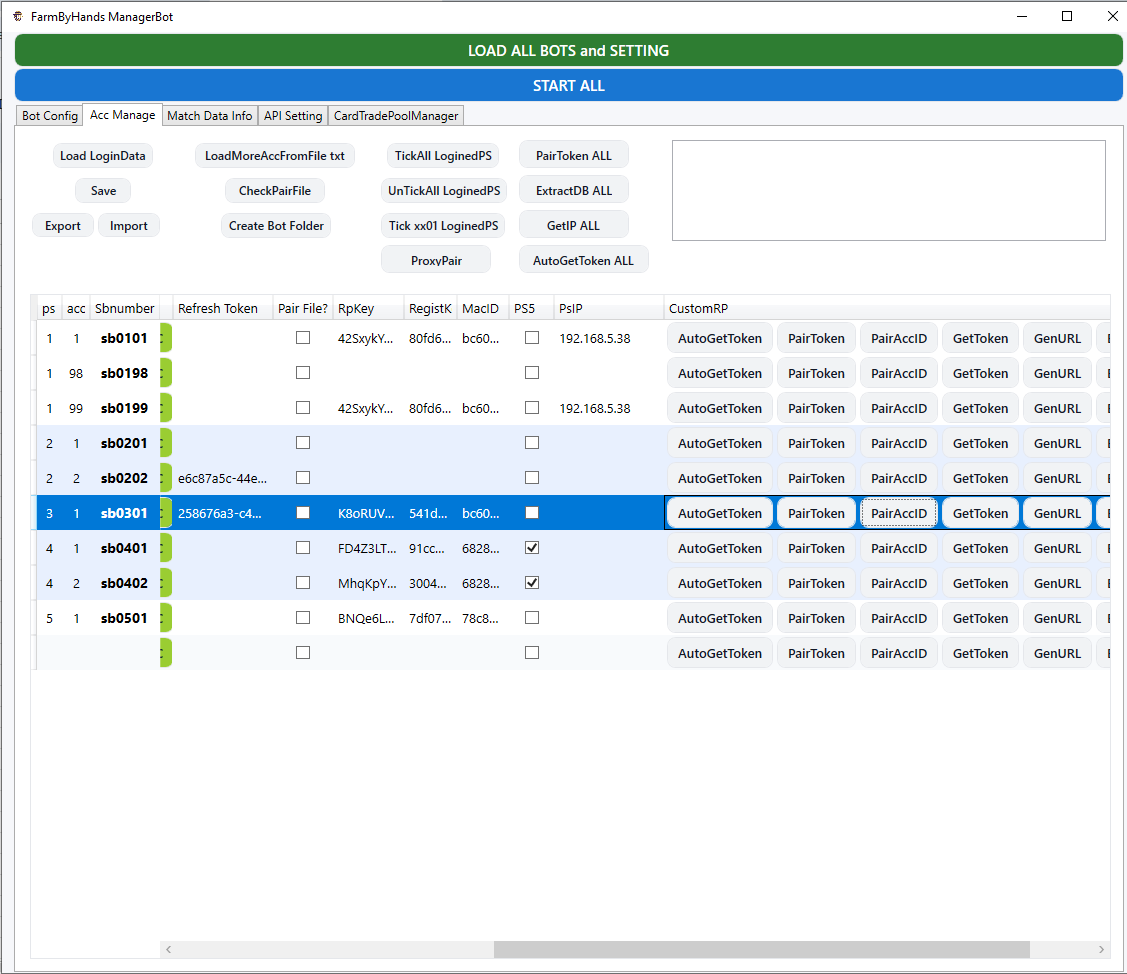
Method 1: Auto GetToken and Pair (Recommended for PS)
In ManagerBot, select the account row and click AutoGetToken. The manager will launch a browser, fill in credentials, and bypass 2FA. Do not move your mouse during this sequence. Once the RefreshToken is successfully generated, click PairToken to complete linking.
Method 2: Pair URL (Manual Login fallback for PS)
If Auto Pairing fails or if you are configuring from a remote PC:
- Click GenURL. A secure login URL is automatically generated and copied to your clipboard.
- Open any web browser, paste the URL, and log into your PSN account manually.
- Once logged in, the browser page will go blank or redirect. Copy the entire redirect link URL from the address bar.
- Back in ManagerBot, click GetToken and paste the redirect link. Once the token loads, click PairToken.
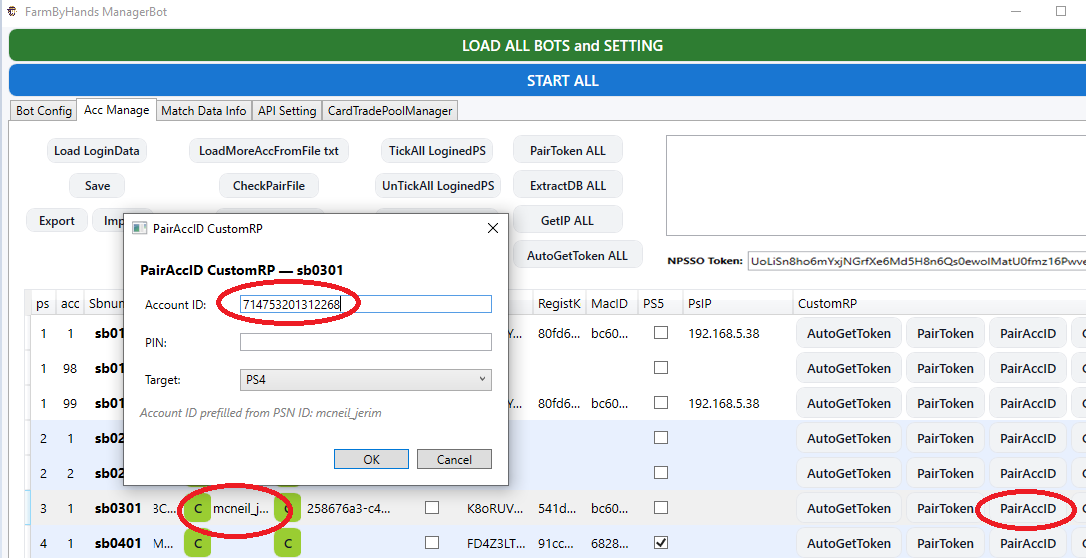
Method 3: PairAccID (Pairing via PIN & AccountID for PS)
Ideal for manual pairings and working around automated browser block screens:
- First, fill in the **NPSSO Token** (see the retrieval guide below).
- In the PS console, go to Remote Play Connection Settings -> Add Device to display an 8-digit PIN on screen.
- In ManagerBot, click PairAccID. The bot will automatically query your Account ID from your PSN ID using the NPSSO token, input the PIN code, and complete linking.
How to retrieve NPSSO Token:
- Open a new browser tab, visit playstation.com, click Sign In in the top right, and log into your account.
- Open another new tab in the exact same browser window.
- Visit the Sony SSO API page by pasting this exact URL:
https://ca.account.sony.com/api/v1/ssocookie - You will see a text block on screen. Copy the 64-character value of the
npssofield:{"npsso": "64_character_combination_of_letters_and_numbers"}
Method 4: Xbox Pairing (Xbox Series X|S & Xbox One)
Xbox account linking is streamlined and fast via ManagerBot:
1. On the Xbox Console:
- The Xbox account must be set as the Active Home Xbox on the console (go to Settings -> General -> Personalization -> My home Xbox).
- Enable Remote Play features on the console (go to Settings -> Devices & connections -> Remote features -> check Enable remote features).
2. 1-Click Operation in ManagerBot:
- Open ManagerBot and navigate to the Acc Manage tab.
- Select your account entry and check the [x] Xbox checkbox.
- Click the AutoGetToken button. The manager launches a browser to authenticate your Microsoft account and complete 2FA.
- Once the RefreshToken is populated, your Xbox account is 100% paired and ready (there is no need to click PairToken).
Step 5: Console (PlayStation & Xbox) & PC Configuration
Tune settings accurately on PlayStation & Xbox consoles and review recommended host PC requirements.
PS4 Console Calibration
To ensure pixel detection and OCR engines read the screen layout correctly, configure these parameters on your consoles:
- System language must be set to English.
- If using an Asian PS4 console, change the button settings so that X is mapped to OK (confirm).
- Ensure Enable Remote Play is checked under connection settings.
- Your PSN account name and display character set must use standard English letters.
Recommended Host PC Specs
For running large scale operations (supporting up to 32 concurrent PS instances), we recommend:
| Component | Recommended Spec |
|---|---|
| Processor | AMD Ryzen 5 2600 (or equivalent) |
| Memory | 16 GB DDR4 RAM |
| Graphics Card | Nvidia GTX 1050 or GTX 1030 |
| Storage | 256 GB SSD |
Step 6: Dashboard Settings & Checkbox Guide
A detailed reference of what each control checkbox does in the Main Tab of ManagerBot.
| Checkbox | Function Description |
|---|---|
DisableLoop |
Stops execution once all scheduled account slots complete 1 full pass (does not loop continuously). |
PreviewPack |
Previews Bronze / Silver / Gold store packs in Ultimate Team before deciding to purchase. |
OpenPacks (OpenPack) |
Opens daily preview packs, claims rewards, and lists valuable player cards onto the transfer market. |
UnlockRival |
Plays Division Rivals matches until reaching the UnlockMatch limit, then automatically logs in to the next account. |
UnlockRush |
Plays Rush mode matches until reaching the UnlockMatch limit, then switches to the next account. |
PlayChampions |
Plays Champions (Weekend League) matches. Must be checked in combination with OnlineMatch. |
PausePlayGame |
Pauses match playing across bots (keeps Remote Play and manager active without entering match queues). |
LogOut97 |
Automatically logs out guest account 97 (Digital Login) once all accounts on the console finish their stopping modes. |
Schedular2 (SchedularCustomRP) |
Enables the CustomRP Scheduler to automatically run bots according to the time schedules configured in the Calendar tab. |
Schedular (SchedularPlayTime) |
Enables legacy time-based scheduling. |
CustomRP |
Uses the CustomRP client (PlayStation Remote Play / Xbox Remote Play). Enabled by default. |
APImode |
Enables coin-transfer API search and card buying/selling loop (DGN/UBuy) dynamically when idle or after matches. |
ActiveDigital48 |
Automatically activates the primary digital account every 48 hours (useful when running 1 digital account shared across 2 consoles). |
ActiveDigital |
Always activates the primary digital account before starting if the last activation was more than 12 hours ago. |
SellMode |
Dedicated API card-selling mode: AFKs at the Transfer Market waiting for API orders without playing matches (use with APImode / OpenPacks). |
SellMode2 |
Sequential API card selling across accounts: monitors coins and limits, then automatically switches to the next account. |
OnlineMatch |
Plays online Division Rivals matches against other bot accounts on the system within the same region. |
MixOLSB |
Runs 3 Squad Battle matches daily before automatically switching to online Division Rivals matches. |
ObjectUnlock2 |
Completes core beginner objectives (The Journey Begins, First Team Dreams, Rising Through the Ranks) to unlock the Web App transfer market. |
AccLogin |
Automates logging profiles into the console. Skips accounts with Logged In checked. |
Step 7: CustomRP Scheduler (Schedular2) User Guide
Automate starting and stopping bots on a time-based schedule per PS instance.
Overview & Activation Checkboxes
The CustomRP Scheduler automatically starts and stops bots on a per-PS time-based schedule, eliminating the need to launch bots manually. Each PS runs its own independent scheduling loop. Activate the following checkboxes in your Manager dashboard to enable it:
- ✅ Use CustomRP checkbox (
isUseCustomRP) - ✅ Schedular CustomRP checkbox (
Schedular2) - ✅ IsUse (select) checkbox for the target PS
- ✅ IsLoop checkbox for the target PS
Schedule Column & Slot Formats (BotSchedularPlayTime)
Configure the schedule string in your configuration settings. Columns are separated by Tab (\\t) characters. The structure consists of 8 columns: 1 slot name column + 7 day columns (Sunday through Saturday):
sbname\t[Sun]\t[Mon]\t[Tue]\t[Wed]\t[Thu]\t[Fri]\t[Sat]Time Slot Format: mode_HH:MM-HH:MM
mode: ScriptMode number (see reference table below).HH:MM-HH:MM: Start time – Stop time. (Start and stop times should not use 24:00 or 00:00).- Multiple slots in one day: separated by a vertical bar pipe
|.
Example Config:
| sbname | Sun | Mon | Tue / Wed / Thu / Fri / Sat |
|---|---|---|---|
sb0101 |
1_09:00-10:00 |
1_09:00-10:00 |
1_09:00-10:00 |
sb0199 |
31_00:01-00:02|32_10:00-10:01 |
31_00:01-00:02|32_10:00-10:01 |
31_00:01-00:02|32_10:00-10:01 |
💡 sb0101: Every day from 09:00–10:00, run ScriptMode 1 (PlayUnlock, 3 matches).
💡 sb0199: Every day at 00:01–00:02 run mode 31 (Activate digital account); at 10:00–10:01 run mode 32 (Deactivate digital account). Both run exactly once per day.
ScriptMode Reference Table
Modes dictate what workflow the bot executes during the scheduled time window. Prefix the mode number to your time slot (e.g. 22_12:00-15:00).
| Group | Mode | Description |
|---|---|---|
| Play Unlock | 1 | PlayUnlock SB — 3 matches |
| 11 | PlayUnlock SB — 3 matches + sell cards via API | |
| 12 | PlayUnlock SB — 3 matches + sell cards via API + open packs | |
| Online Match | 2 | Online Match — Rivals only |
| 22 | Online Match — Rivals + Champions | |
| 23 | Online Match — Rivals + Champions + sell cards via API | |
| 24 | Online Match — Rivals + Champions + sell cards via API + open packs | |
| Sell Only | 28 | Sell Mode — sell cards via API |
| 29 | Sell Mode — sell cards via API + open packs | |
| Special Group | 31 | Activate account (Digital/plus) |
| 32 | Deactivate account | |
| 33 | PS enter rest mode |
31_00:01-00:02).
Special Modes Persistence File
To track if a special script (modes 30-39) has run for the day, the scheduler logs executions in:
C:\\Bot Manager RP v2\\SpecialScriptLastRun.txt
File Layout (Tab separated):
sb0199_31\t2026-04-02\nsb0199_32\t2026-04-02How to Force Re-run a Special Mode:
- Open
SpecialScriptLastRun.txtin Notepad. - Delete the line corresponding to the mode you want to re-run (e.g., delete the
sb0199_31line). - Save the file. The scheduler will automatically catch up and run the job on the next poll.
- Or, delete the entire file to force reset special modes for all accounts.
Scheduling Priority Flow & Loop Behavior
Every 1 second, the scheduler evaluates active and pending jobs in the following order:
1️⃣ Missed Special (Guaranteed-once mode missed or pending. Runs only when NO bot is currently active on this PS)
       ↓
2️⃣ Active Slot (Regular playtime window is open. Wait if a bot is already active)
       ↓
3️⃣ Idle (No active playtimes. Status shows "NoAcc in this playtime")
Loop State Reference:
| State / Event | Action Taken | Cooldown |
|---|---|---|
IsUse = false |
Stop the scheduler loop permanently (exits task). | — |
IsLoop = false |
Pause scheduler loop, status updates to "Pause Loop". | 3 sec |
| Bot process exited | Clean up residual processes, enter cooldown buffer. | 10 sec |
| Bot currently active | Wait for natural stopTime exit (pass stopTime argument). | 5 sec |
| Bot just launched | Stablize system components. | 5 sec |
| No active slot found | Set status to "NoAcc in this playtime". | 10 sec |
Plus / Digital Account Mapping (sb98 / sb99)
Plus accounts (e.g. sb0198) and Digital accounts (e.g. sb0199) do not have their own CustomRP scheduler slots. Instead, they automatically **share the CustomRP instance configuration** of sb{PS}01 on the same PS machine. The scheduler handles this mapping in the background; no extra setup is required.
Important Integration Notes
- Single Instance Enforcement: Only one bot instance runs per PS machine at a time. The scheduler enforces this lock.
- ScriptMode 0: If no mode number prefix is defined in the slot, the bot runs with the default checkbox flags checked in the Manager UI.
- Auto-Exit: The
stopTimeis automatically passed to the bot executable as a runtime argument. The bot closes itself when the time is reached, eliminating manual process kills. - API Configuration Forwarding: Key settings (such as API keys and price thresholds) are forwarded automatically from the current Manager config database.
- No Spaces in Delimiters: Ensure your scheduler configuration uses strict Tabs and not spaces. Some text editors automatically convert Tabs to spaces, which will break the scheduler parsing.
Step 8: API Integration & Limits (DGN/UBuy)
Configure coin-selling APIs and manage distribution limits across your bot network.
Centralized API Management
ManagerBot centrally manages and distributes API cards to idle worker bots. Unlike older versions where bots managed their own connections, this centralized approach provides load balancing and security.
API Slot Setup: To add slots, enter the Site (DGN/UBuy), User ID, and API Key. The system will auto-generate an ID for tracking.
Priority & Looping Controls
- Priority Order: ManagerBot polls API slots from top to bottom. Reorder priority by selecting a row and using the **Move Up** / **Move Down** buttons. Always click **Save API Config** afterward.
- Poll Timeout: Sets the looping interval (in milliseconds) for how frequently ManagerBot queries DGN/UBuy.
- Smart IgnoreHash Routing: If a card is pulled but the assigned bot previously purchased from the exact same client, the system routes the card to a different bot, avoiding spamming identical ignore hashes.
Daily Limit Reset
Define the maximum number of cards a Bot can buy per day for both normal and Cycle (infinite loop) modes. Once hit, the Manager sends a NO_API signal, prompting the bot to rest. Limits reset globally across the entire system automatically every midnight (00:00) without requiring a restart.
Auditing & Fail Reason Mapping
Track logs under the dedicated API Logs window. You can filter historical records by Date (e.g. 2026-04-11.json) and bot name. If a bot fails a purchase, specific codes (e.g. OutBid, Expired, TM_MaxTarget) are logged and reported back to DGN/UBuy.
Worker Engine & Safety watchdogs
- Multi-Buy Loop: In cycle API mode, the bot will rapidly attempt to buy up to 5 consecutive times during a single API burst.
- Smart Expiry OCR: When multiple identical cards are present, the bot uses OCR to verify the card's exact expiration timer on the console screen against the server timestamp.
- Smart Retries: If the expiry time doesn't match, the bot hits D-Pad Right (up to 4 times) to scan neighboring cards, guaranteeing it picks the correct API-listed card.
- Watchdog Recovery: If a worker bot crashes during card analysis, the API lock is automatically forcibly released after exactly 3 minutes.
FBH SBC Automation Bot — Operation Guide
Overview of setting up and operating the automated SBC Solver with Turbo Auto SBC.
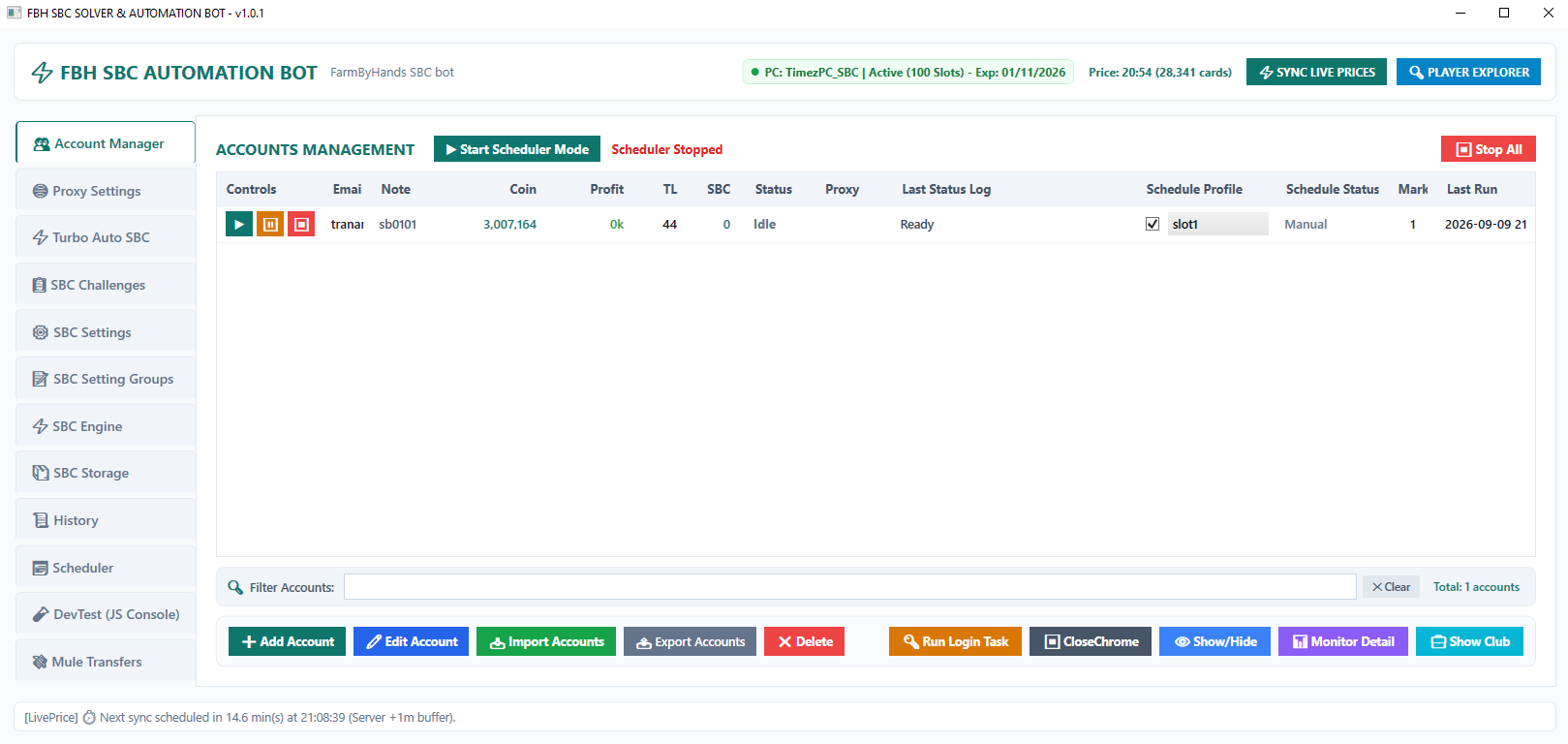
Step 1: Add Accounts & Assign Proxies
In the FBH SBC Bot interface, navigate to Account Manager:
- Click Add Account (or Import Accounts for batch import) to load your WebApp account credentials.
- Assign a dedicated Proxy to each account to maintain separate, secure IP addresses.
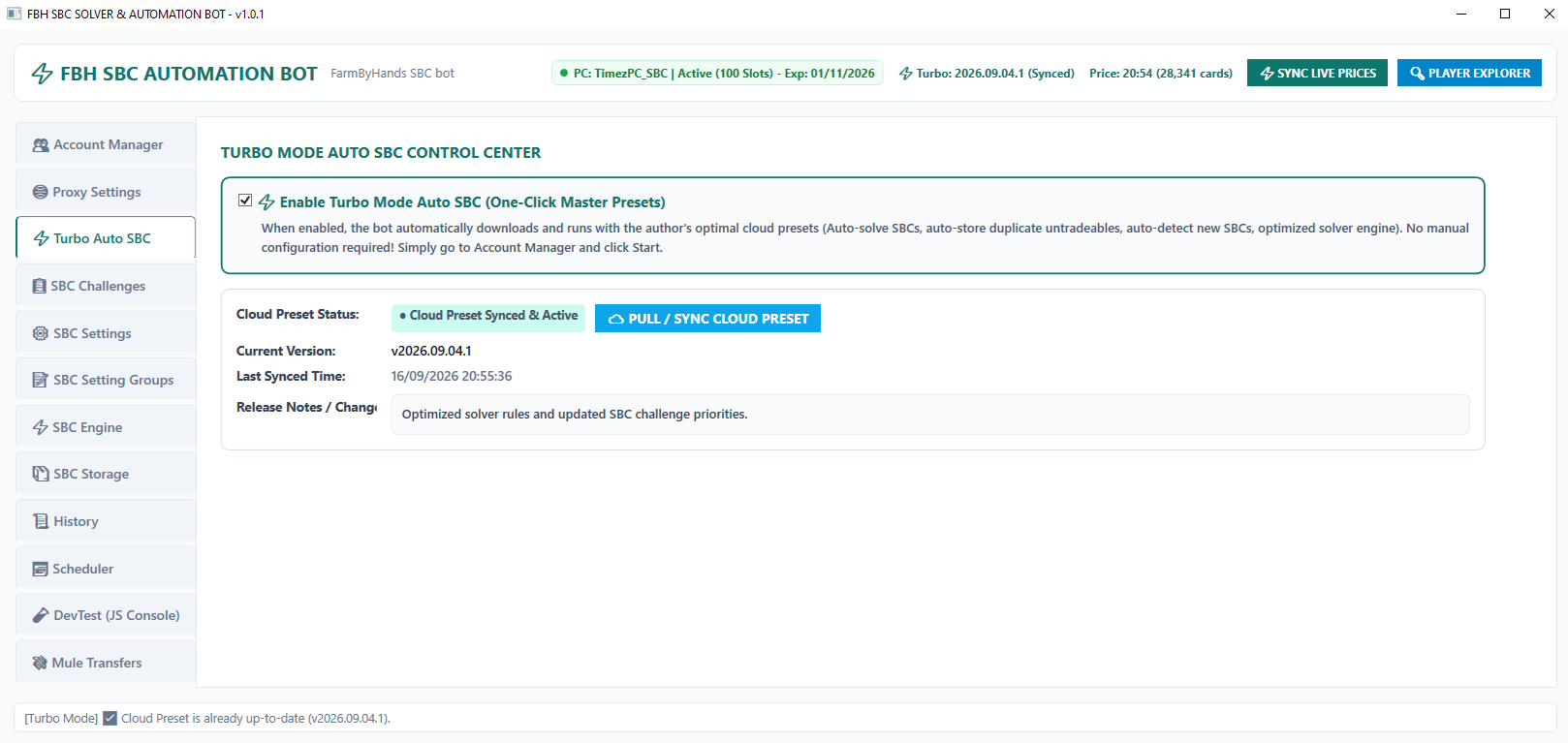
Step 2: Enable Turbo Mode Auto SBC
Switch to the Turbo Auto SBC tab on the left navigation bar:
- Simply check the checkbox: [x] Enable Turbo Mode Auto SBC (One-Click Master Presets).
- The bot will automatically synchronize author's optimal cloud presets (Cloud Preset Synced & Active): picking top profitable SBCs, solving them from your club, and handling duplicate untradeables.
Step 3: Start Scheduler & Collect Profits
Head back to Account Manager and click Start Scheduler Mode (or the green Play button on individual slots):
- The bot launches streamlined, resource-optimized genuine Google Chrome sessions (ultra-low RAM/CPU overhead, ideal for running numerous concurrent slots).
- Automates login, club inventory analysis, AI solving, squad submission, pack opening, and listing valuable tradeable cards on the market.
- Zero manual intervention needed — runs stably 24/7 delivering an average of ~300K coins daily per account.
FAQ & Troubleshooting
Resolve common operational issues and understand advanced dashboard features.
Advanced Checkbox Functions
| Checkbox | Advanced Function |
|---|---|
ActiveDigital |
Used when sharing a single digital game + PS Plus license account across 2 PS consoles. Activates the license on the console for the current run, renewing it if the last active session was more than 10 hours ago. Ensure both consoles are not scheduled to run simultaneously. (No need to check if each console has its own Plus subscription). |
Rival Match & PSN ID OCR Verification
On a new PC setup, you should verify if all PSN Online IDs are correctly recognized by the OCR engine. If the OCR misreads a PSN ID, the matchmaker will not recognize the account, preventing bot matchups.
Why is my new bot account stuck looping in the L2 menu?
Check if the account has console market access unlocked. The bot will always attempt to relist transfer list cards before launching a match. If the console transfer market is locked, the bot will get stuck. Enable ObjectUnlock2 to finish objectives and unlock console market access.
Unlock WebApp Market Workflow: Fresh accounts must complete objectives (The Journey Begins, First Team Dreams, Rising Through the Ranks) via ObjectUnlock2. Afterward, run daily 3 Squad Battle matches (check PlayUnlock, set UnlockMatch = 3 and MatchLimit = 3).
Control Keys
All buttons located in the Control panel send real-time controller simulation commands (like pressing buttons) to all active bots. You can uncheck **Select** for specific PS instances if you want to exclude them from receiving global inputs.